
Prepare your account for DIAN electronic invoicing
FreshlyCart provides a Colombia-specific setup flow for DIAN electronic invoicing. You provide the requested business documents, FreshlyCart reviews them, and FreshlyCart completes the remaining activation work.
This setup is separate from configuring taxes in FreshlyCart. It does not replace your business’s obligations with DIAN or determine which fiscal rules apply to you.
Before you begin
Section titled “Before you begin”- Your FreshlyCart business must be configured for Colombia.
- An account owner or admin must complete the setup.
- Have a current RUT and the identification documents that apply to your business type.
- Uploads must be PDF files, must not be password protected, and must be no larger than 10 MB.
For a legal entity, FreshlyCart also requests a Chamber of Commerce certificate issued less than 30 calendar days ago. Confirm with your tax or legal adviser which documents and DIAN registrations your business needs outside FreshlyCart.
Start DIAN setup
Section titled “Start DIAN setup”- In FreshlyCart Back Office, open the subscription management page.
- Find Electronic invoicing.
- If activation has not started, follow the available Activate electronic invoicing or Start DIAN setup action. The action shown depends on the account’s plan and activation state.
- Open the DIAN electronic invoicing setup page.
- Choose Individual (persona natural) or Legal entity (persona jurídica).
- Select Save.
Having electronic documents in your account balance does not mean DIAN setup is active. The setup page shows the account’s current activation state separately.
Upload the required documents
Section titled “Upload the required documents”FreshlyCart requests documents according to the selected business type:
- Individual (persona natural): Identification document and RUT.
- Legal entity (persona jurídica): Legal representative’s identification, RUT, and Chamber of Commerce certificate.
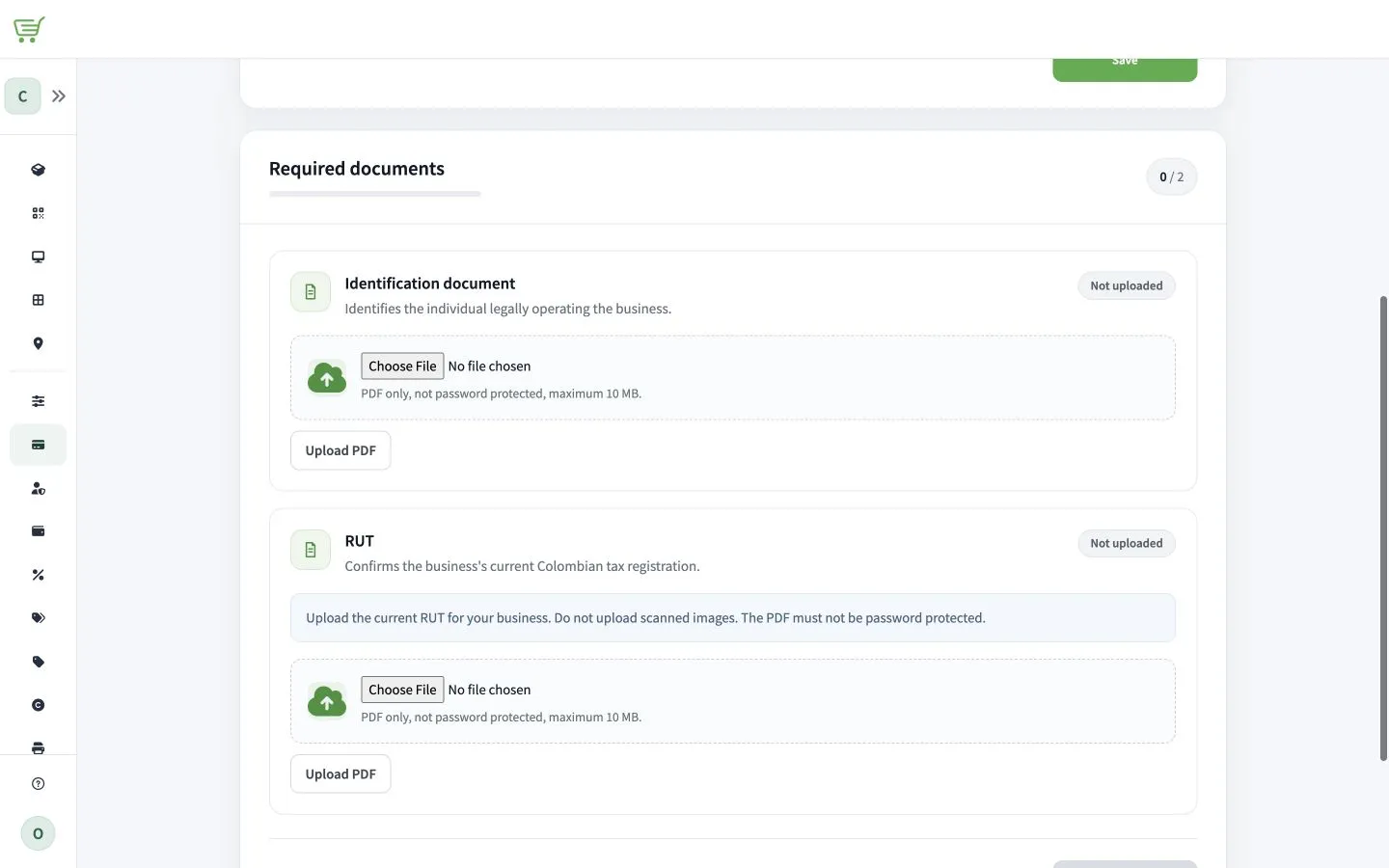
- For each item under Required documents, choose the PDF and select Upload PDF.
- Check that every required document shows as uploaded.
- Select Submit for review.
What happens next
Section titled “What happens next”The setup moves through merchant-visible states:
- Reviewing: FreshlyCart is reviewing the submitted documents.
- Action required: replace or correct the document identified on the setup page.
- Processing: the documents were approved and FreshlyCart is completing activation.
- Activated: electronic invoicing is active for the business.
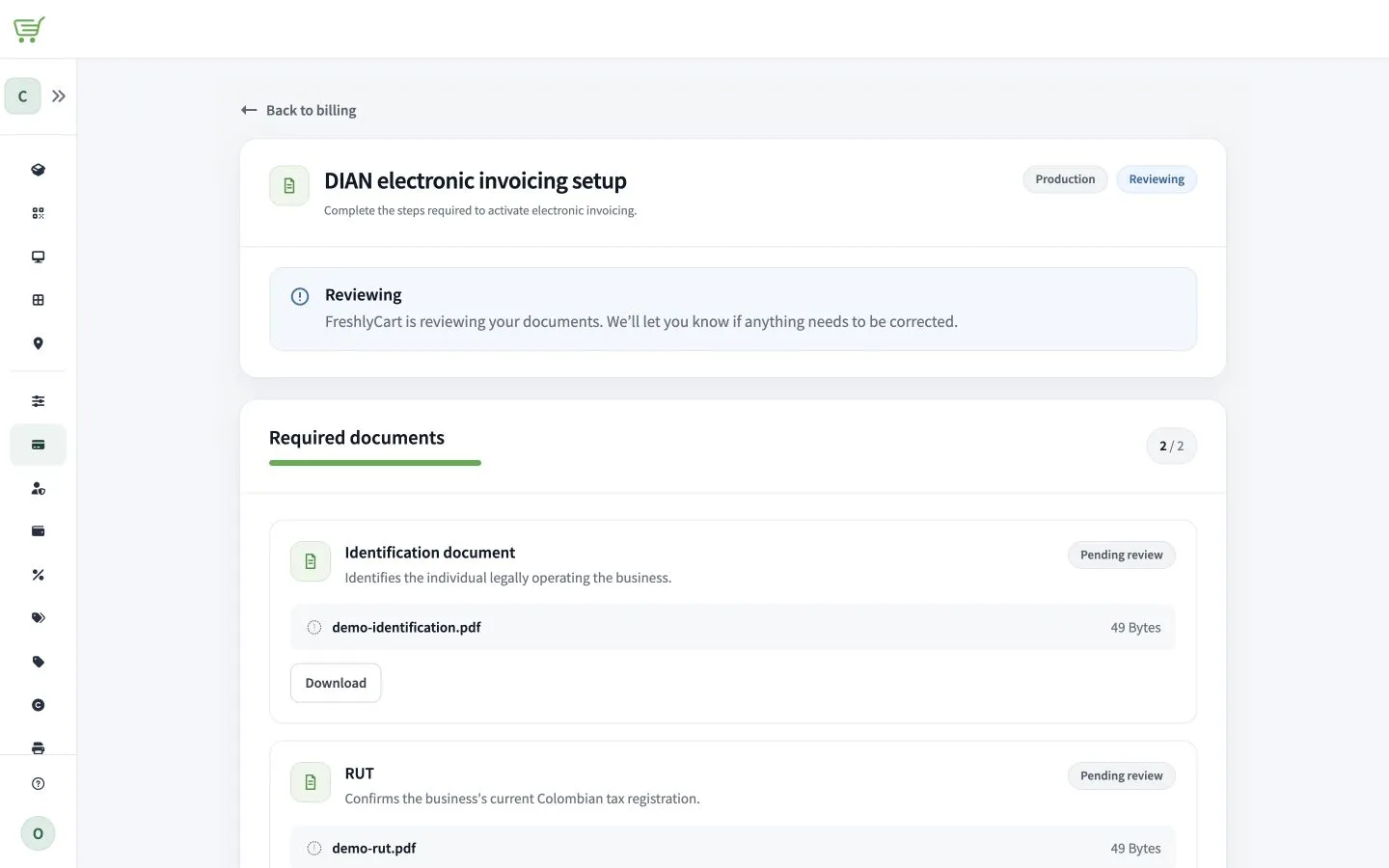
Do not treat submission or an available document balance as confirmation that the account is active. Wait until the setup page shows Activated.