
Receive a purchase order
Receive a pending purchase order after all ordered products and quantities have arrived.
Receive in Back Office
Section titled “Receive in Back Office”- In Back Office, open Purchase Orders from Inventory or Inventory Management.
- Open the pending purchase order.
- Compare each product and Ordered Quantity with the delivered goods.
- Confirm that the location shown on the order is where the stock was delivered.
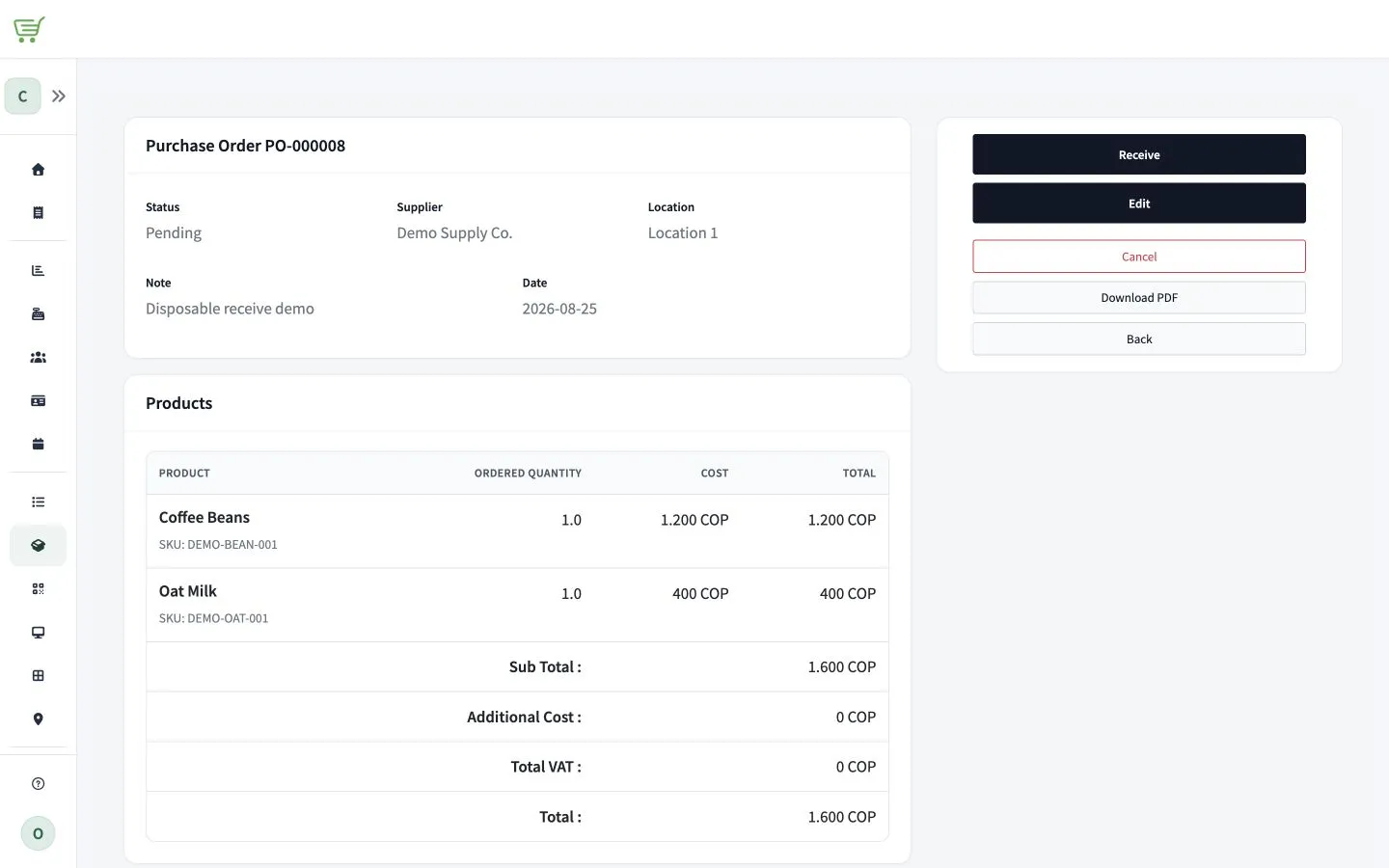
- Select Receive.
Receive in FreshlyCart Inventory
Section titled “Receive in FreshlyCart Inventory”- Select the order’s location when signing in to FreshlyCart Inventory.
- Select Purchase Orders and open the pending order.
- Review every product and its Ordered Qty.
- Open the order menu and select Receive Purchase Order.
- Confirm that you want to receive the purchase order.
FreshlyCart changes the order status to received and adds each ordered quantity to stock at the order’s location. Reopening, canceling, or changing the inventory-bearing order lines after receipt is not available in the verified workflow.