
Complete a physical inventory count
Use a physical inventory count, sometimes called a stock take, to compare the products on hand with FreshlyCart’s expected stock at one location.
Create the count in Back Office
Section titled “Create the count in Back Office”- In Back Office, open Physical Inventory from Inventory or Inventory Management.
- Select New Physical Inventory.
- Enter a Name and an optional Note.
- Select the location you are counting.
- Add products with Search, or select Add By Category to add a category’s products.
- Review the selected products and their Expected Stock.
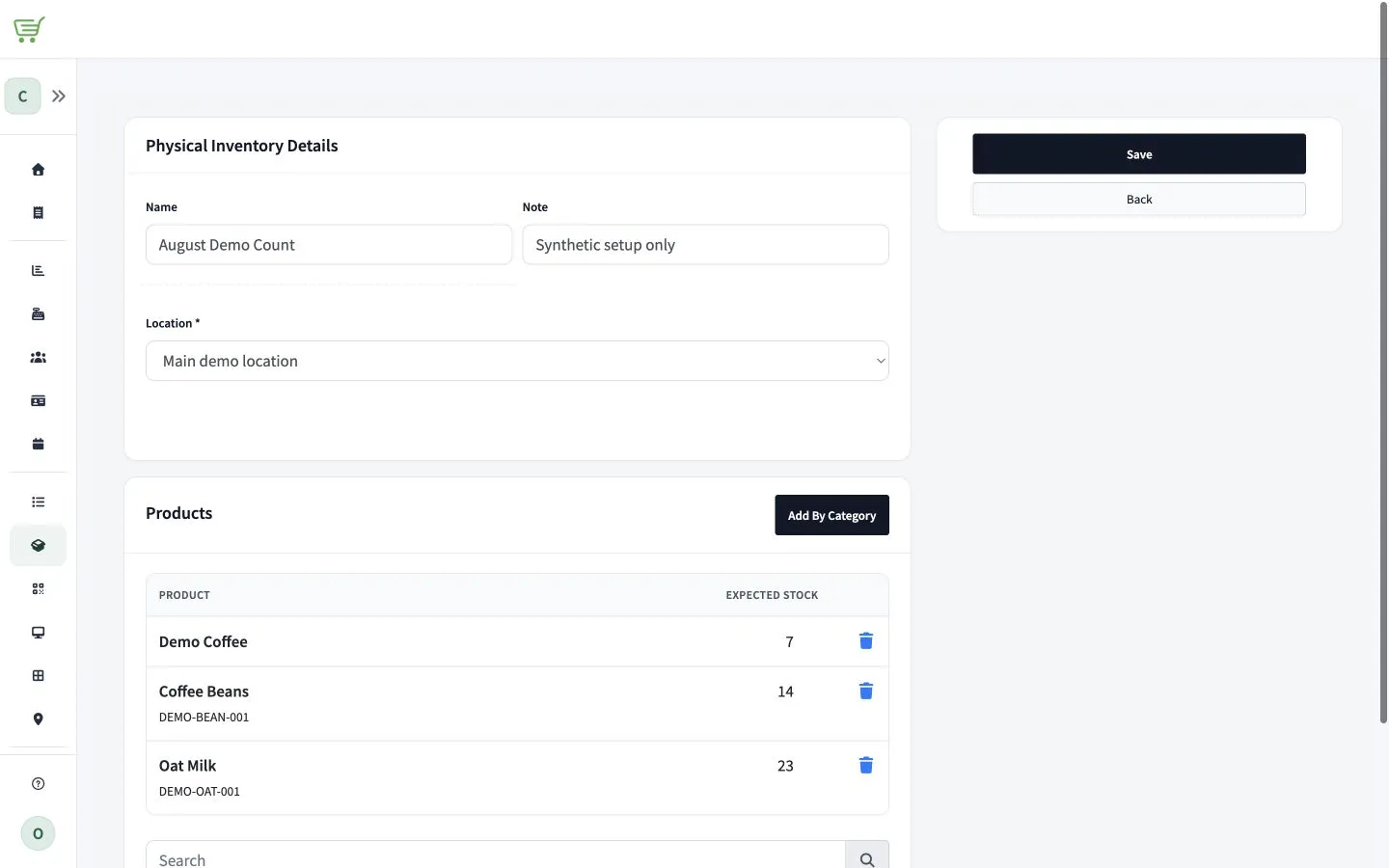
- Select Save.
Count products in FreshlyCart Inventory
Section titled “Count products in FreshlyCart Inventory”- Sign in to FreshlyCart Inventory at the same location used for the count.
- Open Physical Inventory.
- Select the physical inventory for the location you are counting.
- Open in Progress to see the products that still need a count.

- Select a product.
- On New Count, use the minus and plus controls or enter the quantity you counted.
- Select Save.

Saving records the counted quantity for that product and moves it to Completed. It does not update stock yet. To change a saved count before completing the entire inventory, open Completed, select the product, update New Count, and select Save again.
- Repeat these steps until every product is under Completed.
- Open Completed and review the saved quantities.
Complete the physical inventory
Section titled “Complete the physical inventory”The Complete Physical Inventory action remains unavailable while any products are under in Progress.
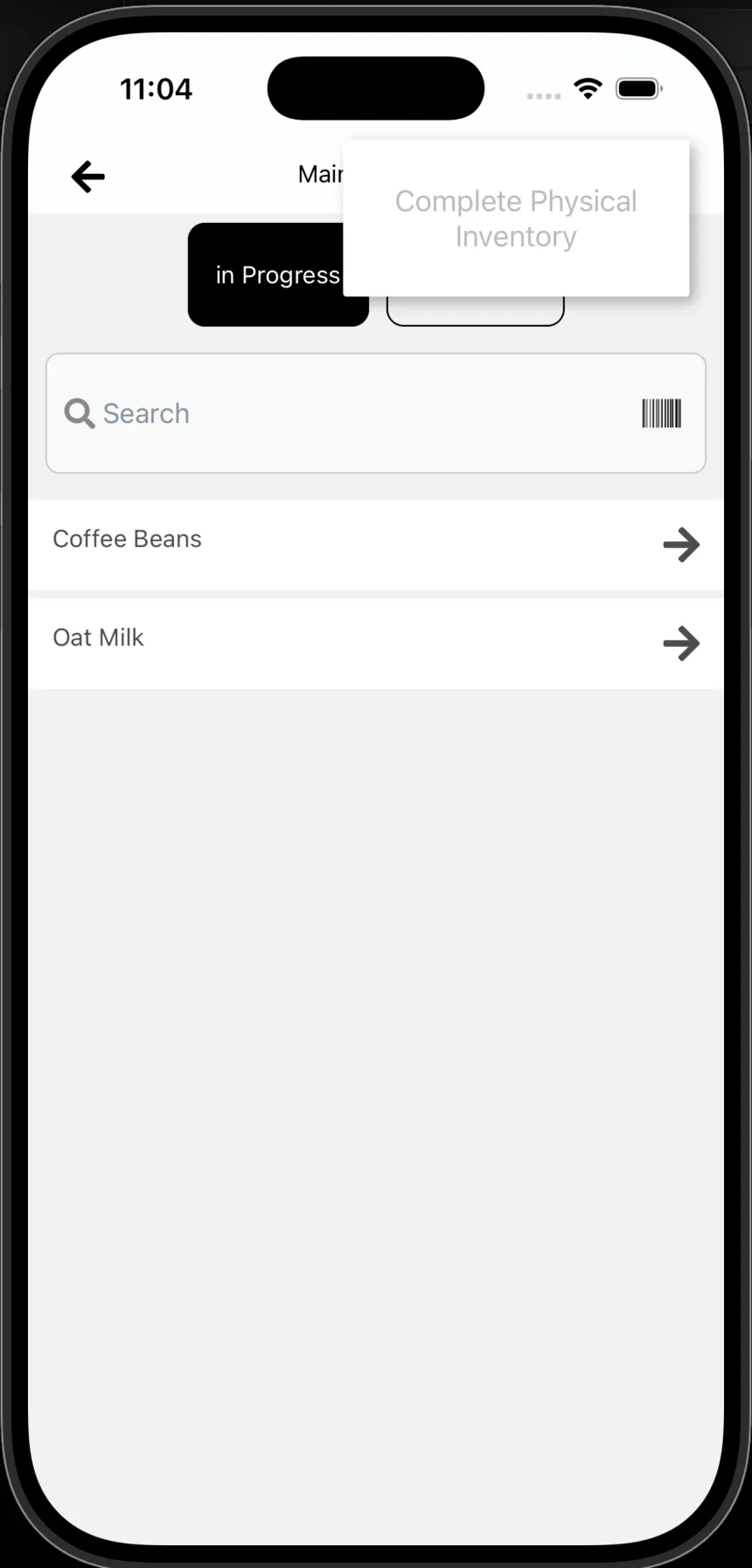
- Verify that no products remain under in Progress and review the products under Completed.
- Open the
…menu. - Select Complete Physical Inventory.
FreshlyCart applies the saved quantities when the entire physical inventory is completed. It records an inventory adjustment for each quantity that changed. Products whose counted quantity matches the current stock do not need an adjustment.