
Create product variants
Use variants when versions of one product need their own price, SKU, barcode, or stock quantity. A modifier is different: it adds a selectable extra to a product during a sale.
Create variants
Section titled “Create variants”- In Back Office, open the product:
- For a retail business, go to Management → Inventory → Items.
- For a restaurant, go to Management → Menu → Products.
- In Variants, turn on Enable Variants.
- Under Variant setup, enter the first variant’s name, such as Small.
- Enter its SKU, Barcode, Price, and Quantity where needed.
- Select Add Variant for each additional version of the product.
- Complete the fields for every variant and review the rows.
- Select Save on the product.
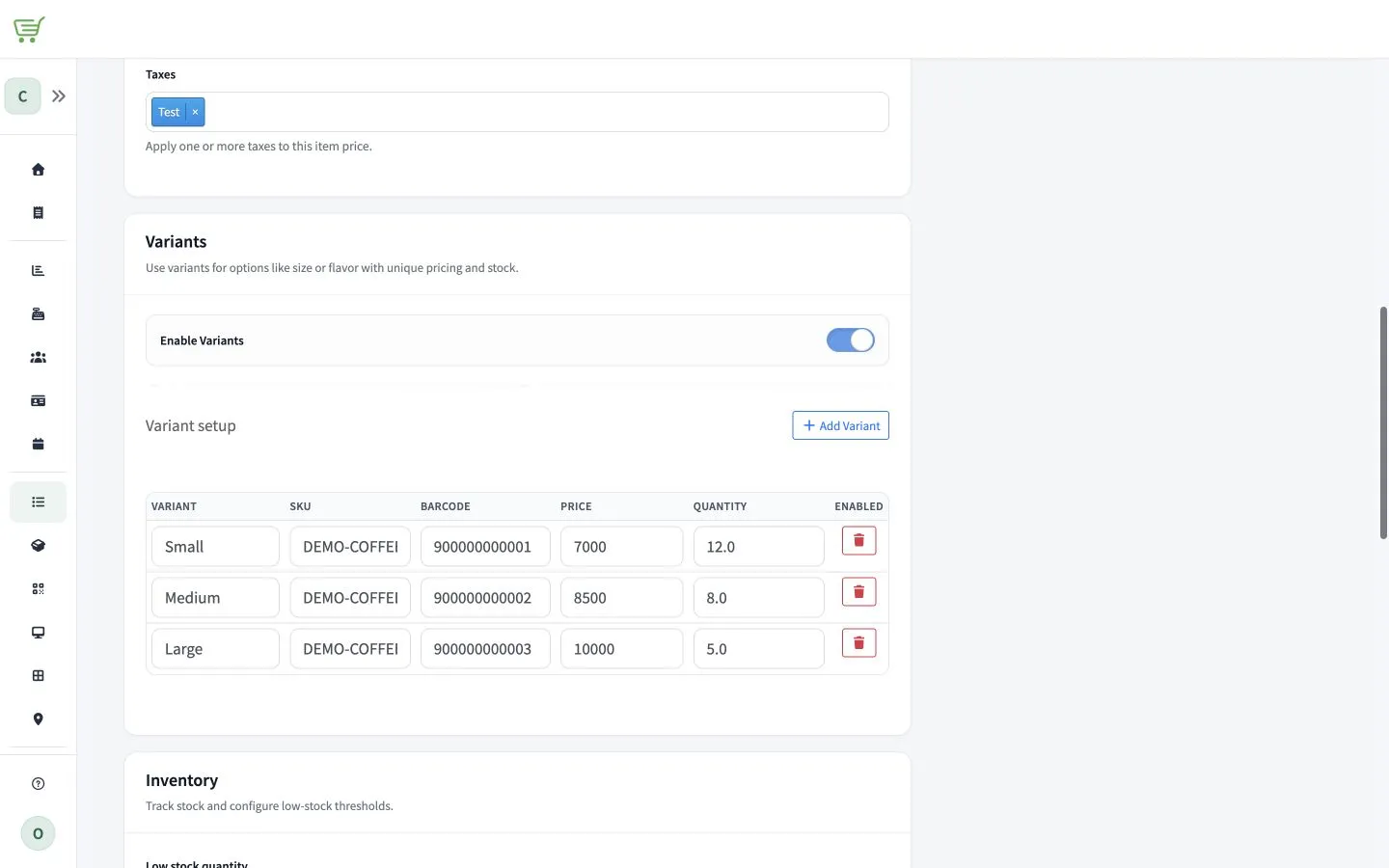
Each saved variant appears as a sellable version of the parent product in FreshlyCart POS after the catalog synchronizes.