
Create a purchase order
Create a purchase order for the location that will receive the products. The order records the supplier, products, ordered quantities, and costs; it does not change stock until you receive it.
Before you begin
Section titled “Before you begin”- Create the supplier first if you want it attached to the order.
- Confirm the location that will receive the stock.
Create the order in Back Office
Section titled “Create the order in Back Office”- In Back Office, open Purchase Orders from Inventory or Inventory Management.
- Select New Purchase Order.
- Enter the Purchase Date and choose a Supplier when applicable.
- Select the location that will receive the order.
- Enter the Supplier Bill Number and Note when applicable.
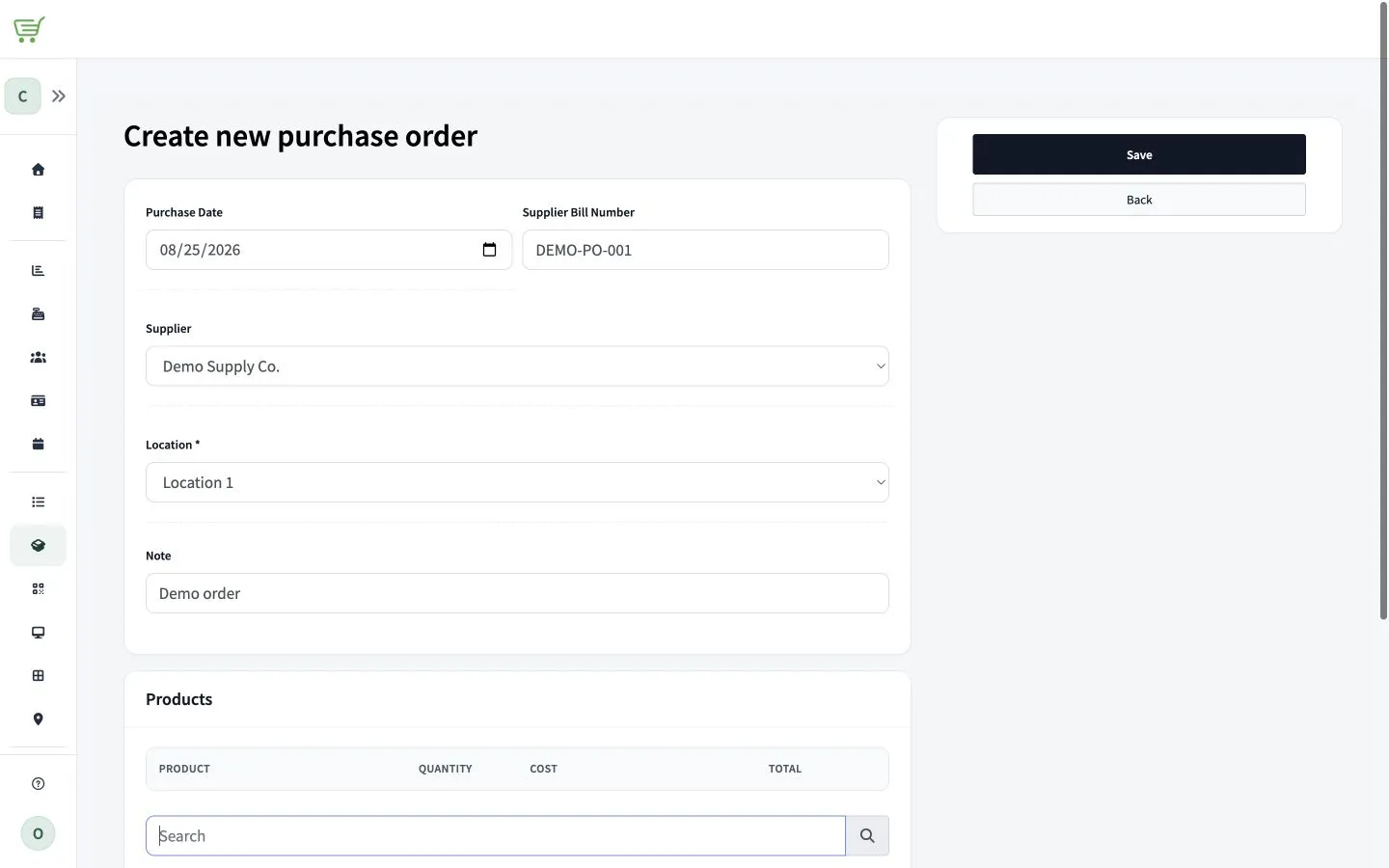
- Use Search to add each product.
- Enter the Ordered Quantity and Cost Per Item for each line.
- Enter Tax Amount and Additional cost when they apply.
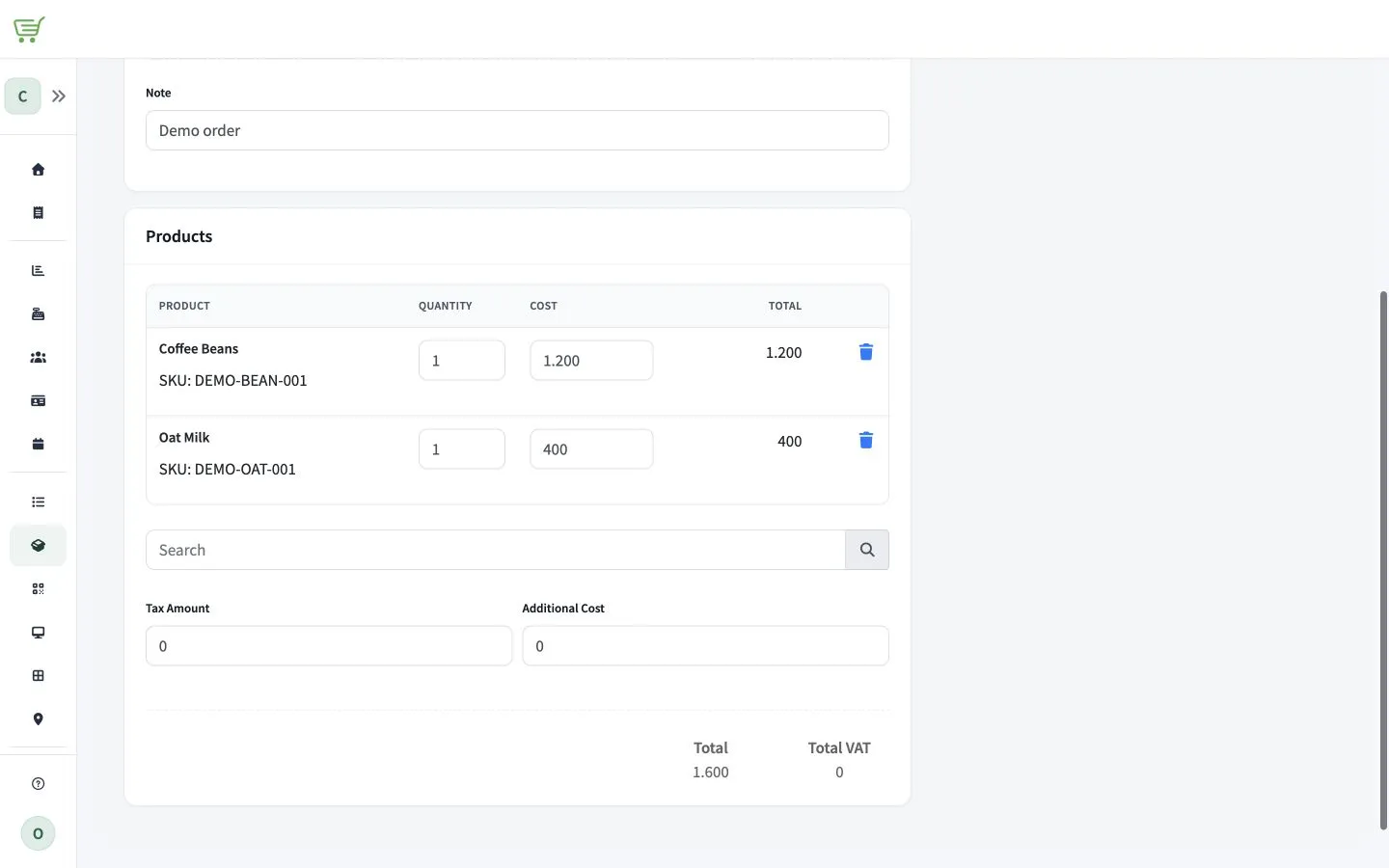
- Review the order and select Save.
FreshlyCart creates the purchase order with a pending status. You can edit or cancel it before it is received.