
Set up a receipt printer
Connect a network receipt printer to FreshlyCart POS, test the connection, and make it available for customer receipts.
Before you begin
Section titled “Before you begin”- Connect the POS device and printer to the same local network.
- Use the printer manufacturer’s instructions to find its IPv4 address and confirm that it accepts ESC/POS data over TCP port
9100. - Load paper and make sure the printer is ready. FreshlyCart provides 58 mm and 80 mm generic model choices; select the width that matches the printer.
- Keep the printer address stable when possible. If the network later assigns a different address, update it in FreshlyCart.
Set up the printer
Section titled “Set up the printer”- In FreshlyCart POS, go to Settings → Printers.
- On the Printers tab, select the add action.
- Enter a recognizable Printer Name.
- Under Printer Type, select Network Printer.
- Under Model, select the matching listed model. For a compatible generic printer, select Other 58 or Other 80 for the printer’s paper width. A generic width choice does not confirm every unlisted model.
- Under Printer Job, select Cashier for customer receipts.
- Enter the printer’s IPv4 address in Printer IP Address. Do not add
:9100; FreshlyCart uses that port automatically. - Turn on Active.
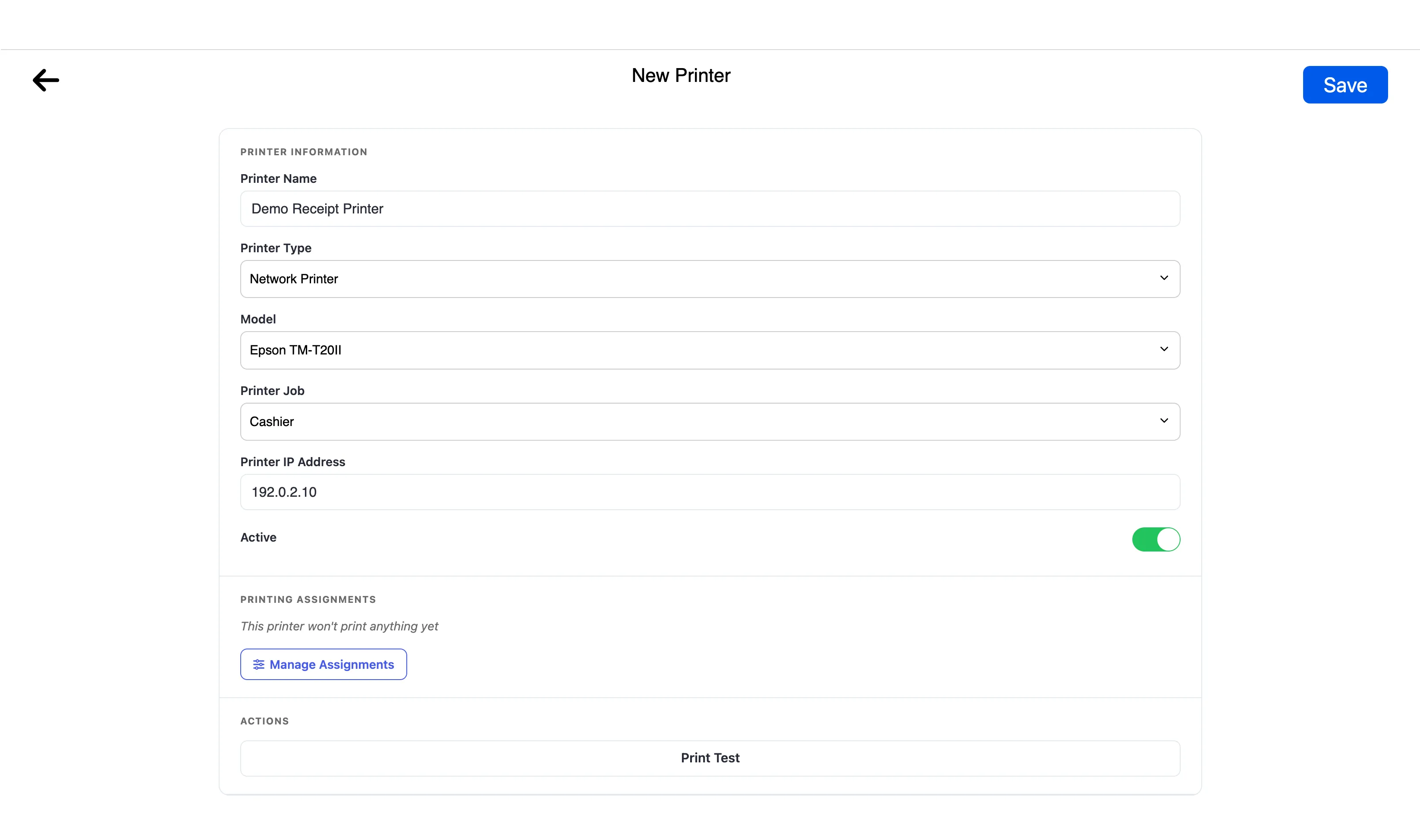
- Select Print Test.
- When the test succeeds, select Save and confirm the change.
If your business uses printer profiles, under Printing Assignments select Manage Assignments. In Select Printer Profiles, select the active profile that prints receipts.
What happens next
Section titled “What happens next”FreshlyCart saves the network address. Without a printer-profile assignment, an active printer whose Printer Job is Cashier provides fallback receipt printing. A receipt-profile assignment routes that profile’s receipts to the assigned printer. A successful test confirms that FreshlyCart reached the configured address and sent print data; it is not a certification of every function supported by the printer.
If the test does not print, follow Receipt printer is not printing.