Customize products on a Digital Menu
Customize how a product appears on one Digital Menu without replacing its underlying POS product.
Edit customer-facing details
Section titled “Edit customer-facing details”- Open the menu in the Menu Builder.
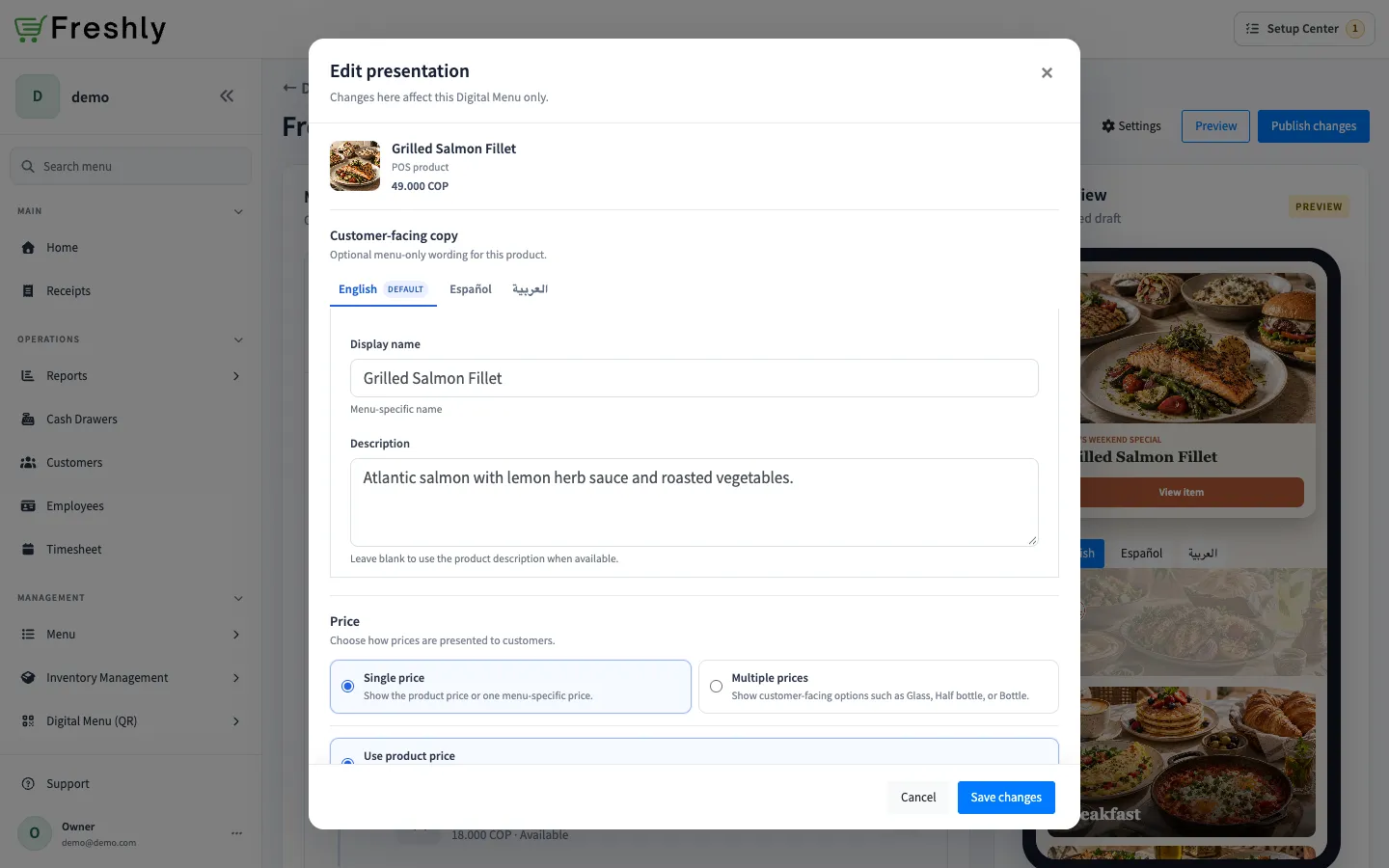
- Open the product actions and select Edit presentation.
- Under Customer-facing copy, enter an optional Display name and Description for each enabled menu language. Leave a field blank to use the product’s existing value when available.
- Under Menu image, select Use different image to add a menu-specific image. Remove the override to use the product image again.
- Under Menu status, set the product as needed:
- Visible to customers controls whether it appears on the published menu.
- Featured highlights it for customers.
- Sold out marks it unavailable on this menu without changing the POS product.
Choose a price display
Section titled “Choose a price display”Under Price, select one of these options:
- Single price: choose Use product price or Override price. An override applies only to this Digital Menu.
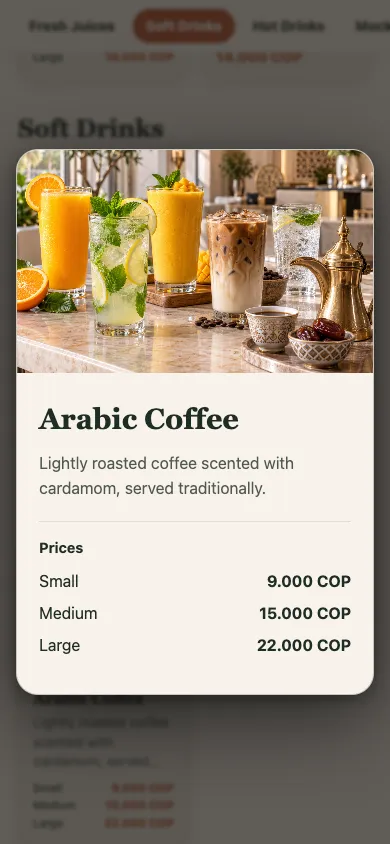
- Multiple prices: select Add price, then enter a customer-facing label and price for each option. Labels are flexible, such as Glass, Half bottle, and Bottle.
For multiple prices, use the language tabs to translate each label into the enabled menu languages. Drag the price rows to reorder them. These price options describe what customers see; they are not POS variants and do not change POS product pricing.
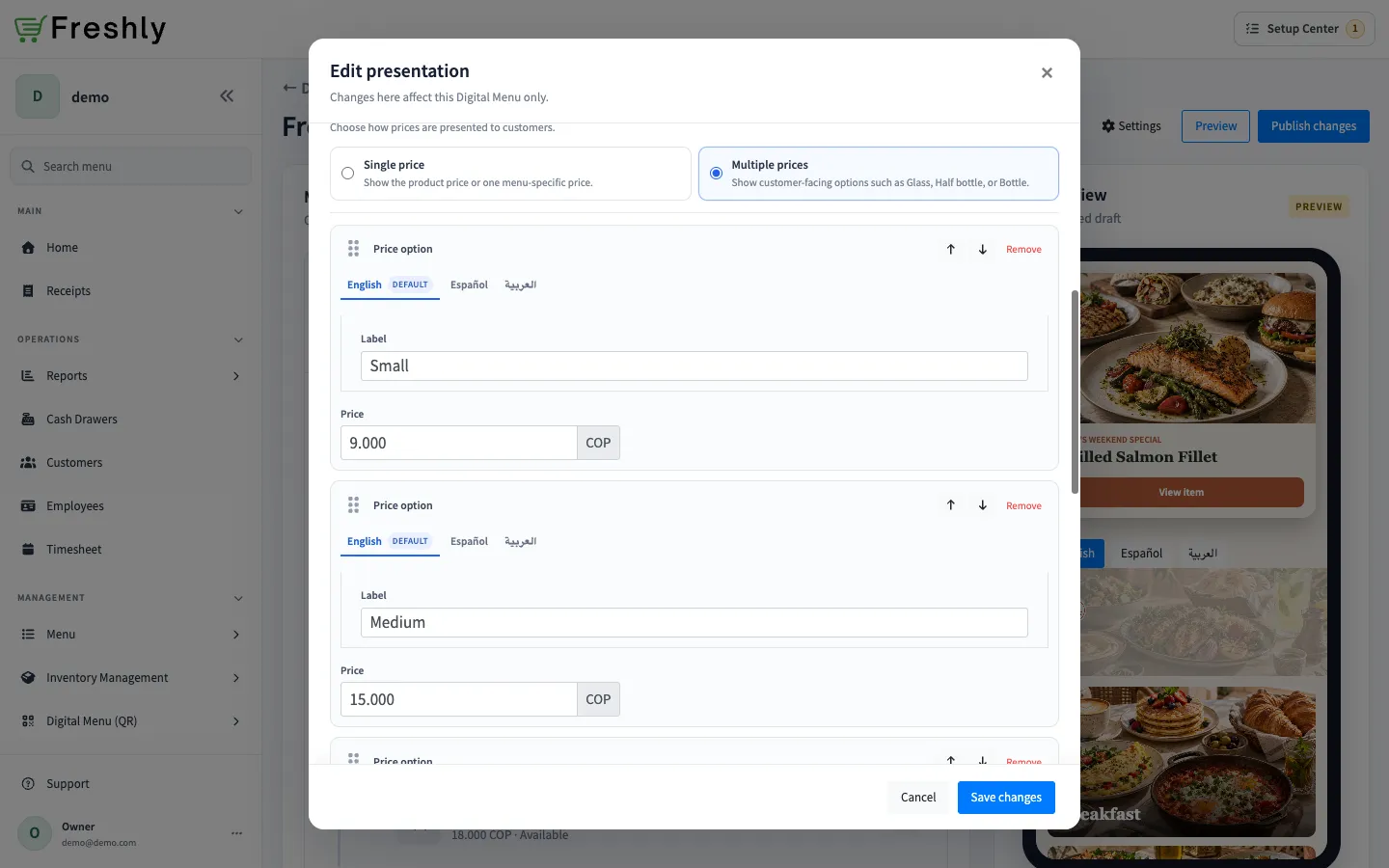
- Select Save changes.
The Builder preview shows the saved presentation. Customers continue seeing the last published version until you select Publish changes.