
Create a Digital Menu
Create a Digital Menu that customers can open from a public link or QR code. Digital Menu is a customer-facing menu; customers cannot place orders from it.
Before you begin
Section titled “Before you begin”Digital Menu must be included in your subscription. If it is unavailable, FreshlyCart shows upgrade options instead of the menu workspace.
Create the menu
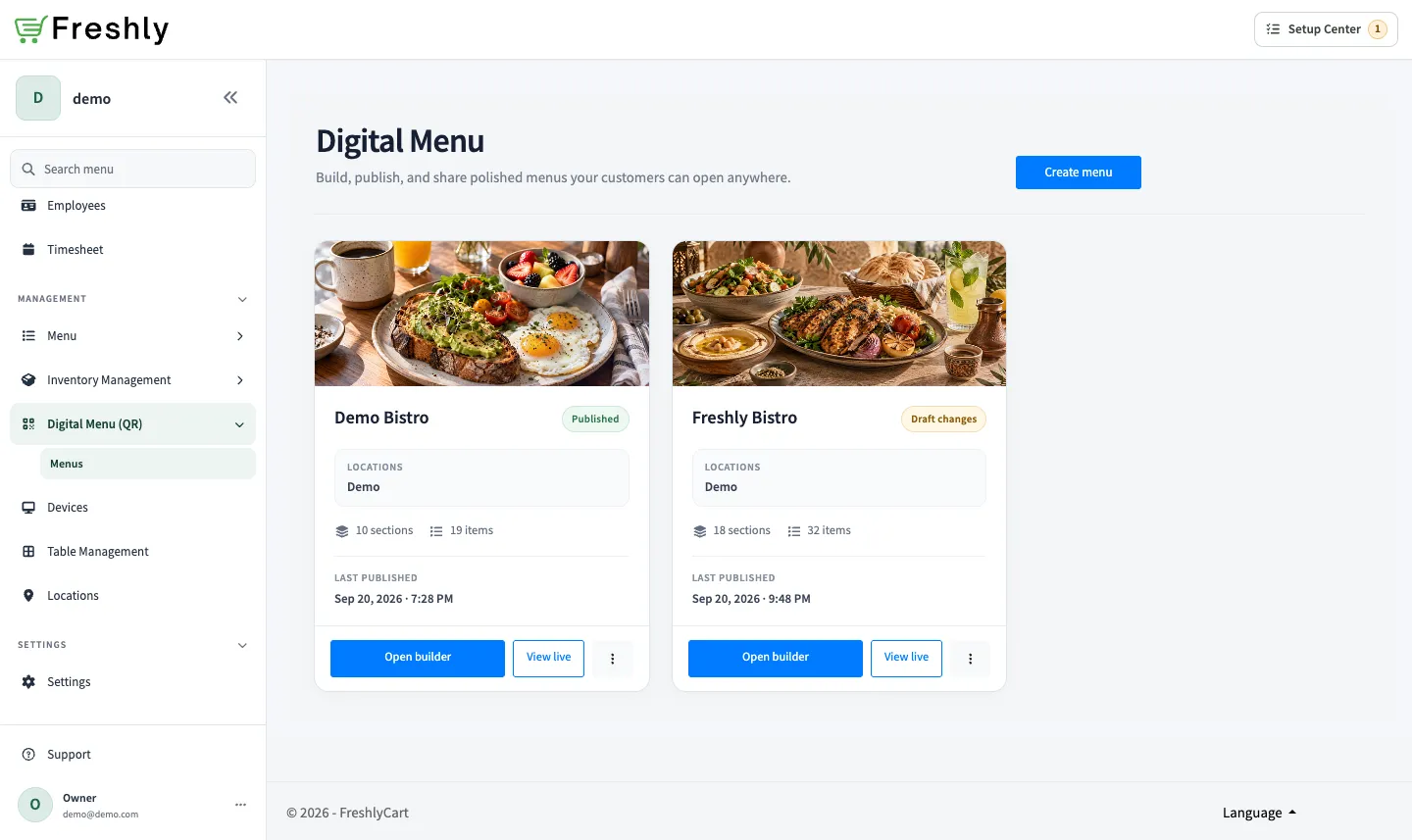
Section titled “Create the menu”- In Back Office, go to Digital Menu (QR) → Menus.
- Select Create menu. If you do not have a menu yet, select Create your first menu.
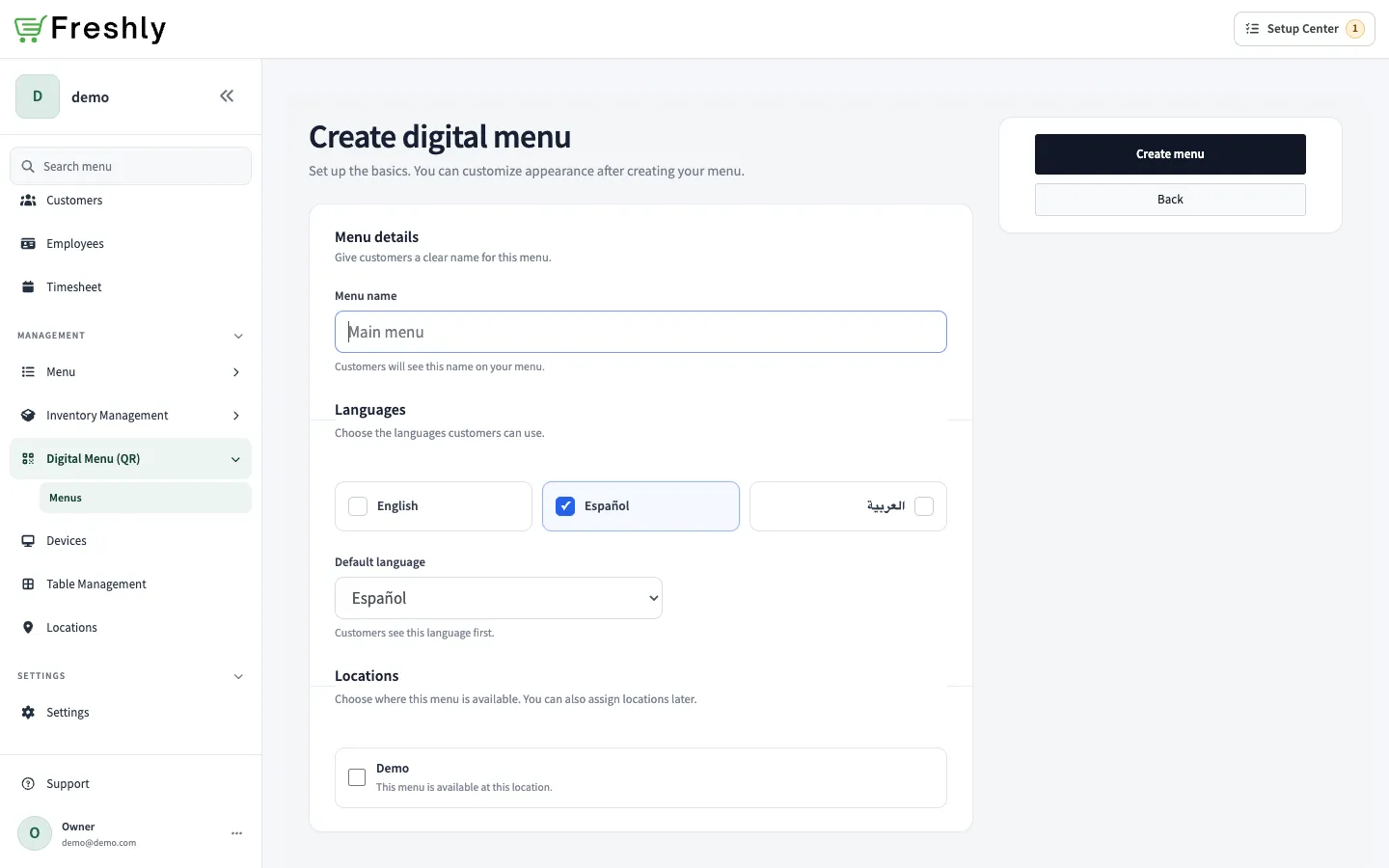
- Enter a Menu name. Customers see this name when the menu does not have a logo.
- Under Languages, select one or more languages for customers. You can choose English, Spanish, Arabic, or any combination of them.
- Choose a Default language from the selected languages.
- Under Locations, select each location where customers can use the menu. You can also assign locations later.
- Select Create menu.
FreshlyCart opens the Menu Builder so you can add Sections and products. The new menu remains a draft until you publish it.