
Promote an item on a Digital Menu
Use the menu’s single popup promotion to draw attention to one product that is already on that Digital Menu.
Configure the promotion
Section titled “Configure the promotion”- Open the menu in the Menu Builder.
- Select Promotion.
- Turn on Show promotion popup.
- Under Promoted item, choose a visible product already placed on this menu.
- Use the language tabs to enter an optional Promotion title and Message for the enabled menu languages.
- Under Promotion image, select Use different image to upload a promotion-specific image. Without one, the editor uses the selected product’s resolved menu image when available.
- Select Save promotion.
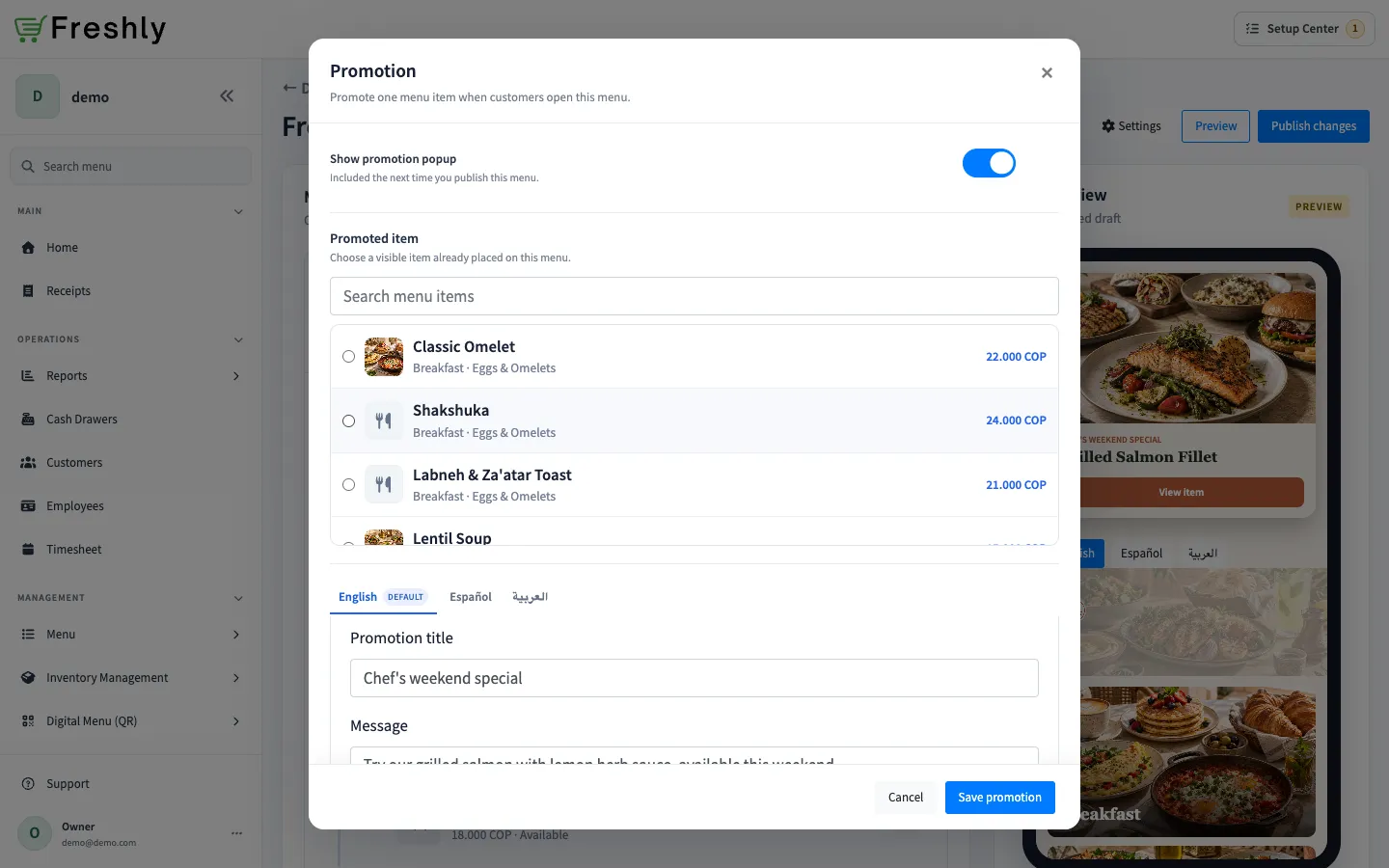
- Select Preview to review the draft promotion.
- Select Publish changes to make it visible to customers.
The popup appears after the customer menu opens. Customers can dismiss it, and View item opens the promoted product’s details. The promotion displays information only; it does not create an order.
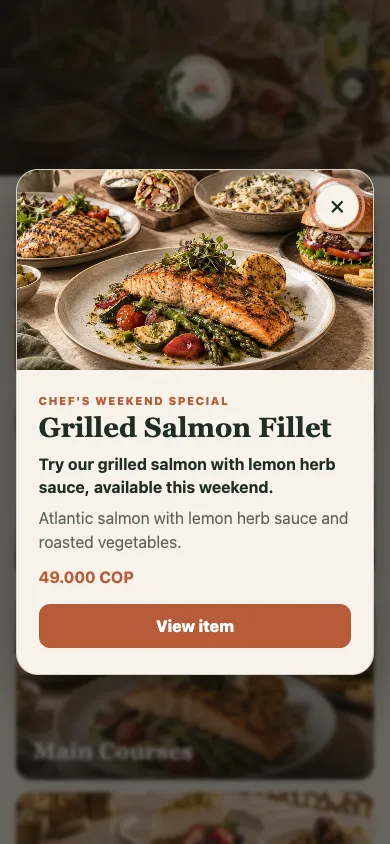
To stop showing it, turn off Show promotion popup, save, and publish again. A menu has one promotion configuration; it does not support scheduled campaigns or promotion analytics.