
Preview, publish, and share a Digital Menu
Preview saved draft changes before publishing, then share the public Digital Menu by link or QR code.
Preview the draft
Section titled “Preview the draft”- Open the menu in the Menu Builder.
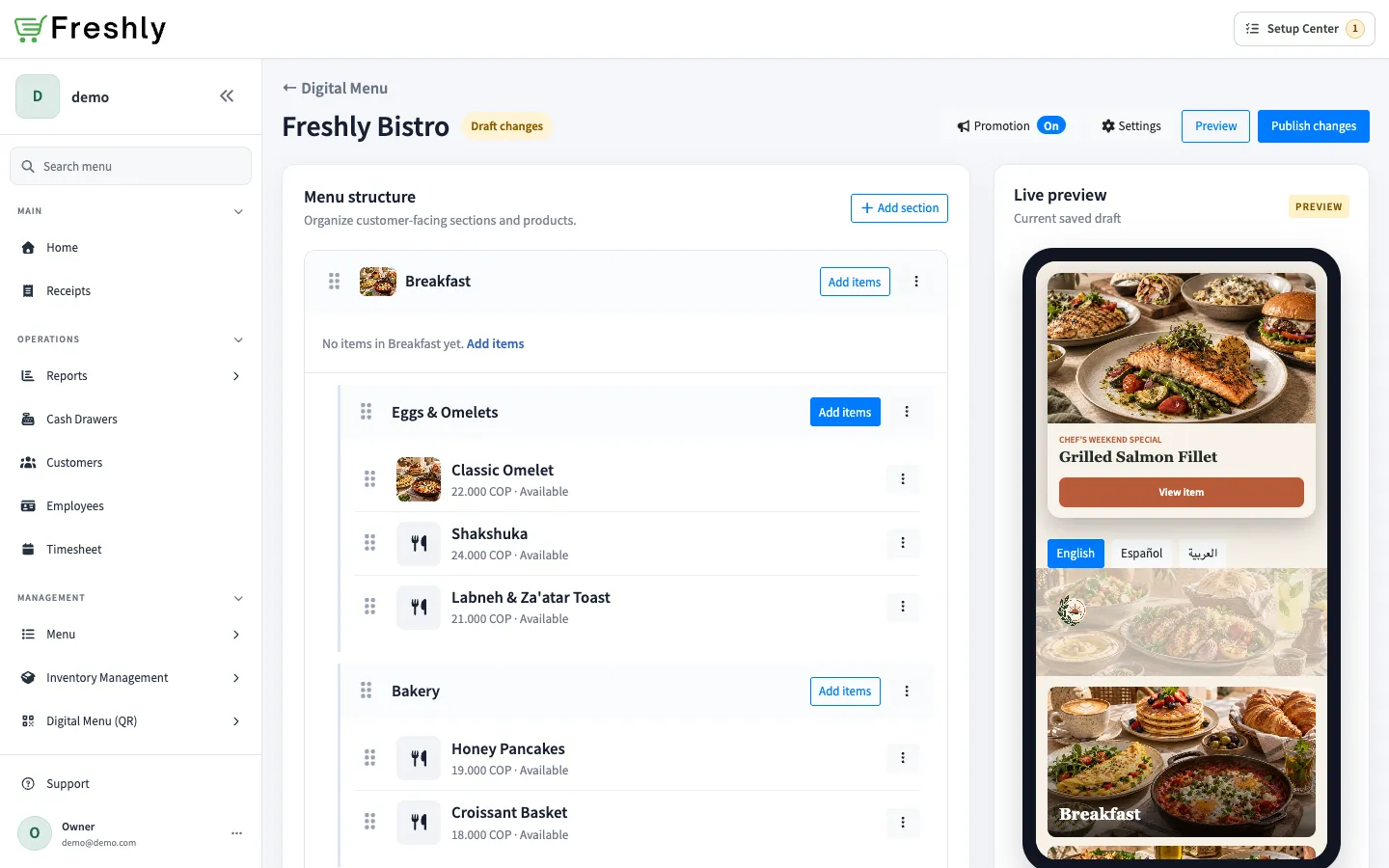
- Check the status beside the menu name:
- Draft changes means saved changes have not been published.
- Published · Up to date means the published menu matches the saved draft.
- Review Live preview in the Builder, or select Preview to open a larger draft preview.
Preview shows the current saved draft. Customers continue seeing the last published version while you edit.
Publish and share
Section titled “Publish and share”- Return to the Menu Builder and select Publish changes.
- Wait for the status to change to Published · Up to date.
- Select View live menu to inspect the customer-facing version.
- Copy the public menu link from the sharing area, or select Download QR to save its QR code.
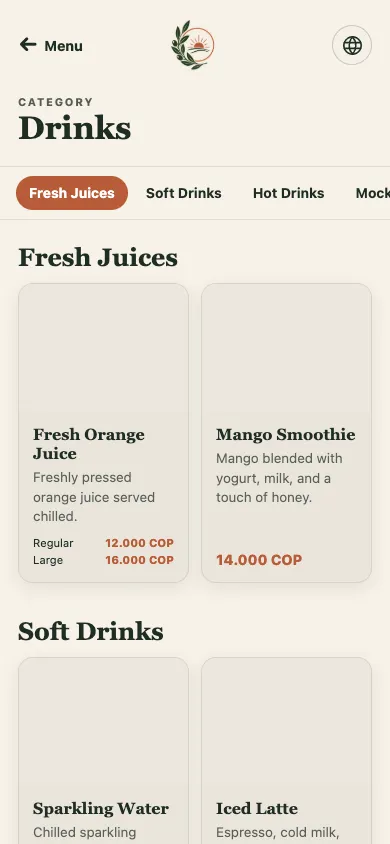
Before its first publication, the menu has no public link or QR code to share. After publication, only published content is visible to customers; later draft changes stay private until you publish again.