
Set up restaurant tables
Create a table layout for each restaurant location where staff assign dine-in orders to tables.
Create a table layout
Section titled “Create a table layout”- In Back Office, go to Management → Table Management.
- Select Add New Table Layout.
- Enter the Table Layout Name.
- If Location is shown, select the location that uses the layout.
- Select Save.
Add sections and tables
Section titled “Add sections and tables”- Open the table layout.
- Select Add a new section.
- Enter the section Name, then select Save.
- Select the section.
- Under Add tables, select Square or Round.
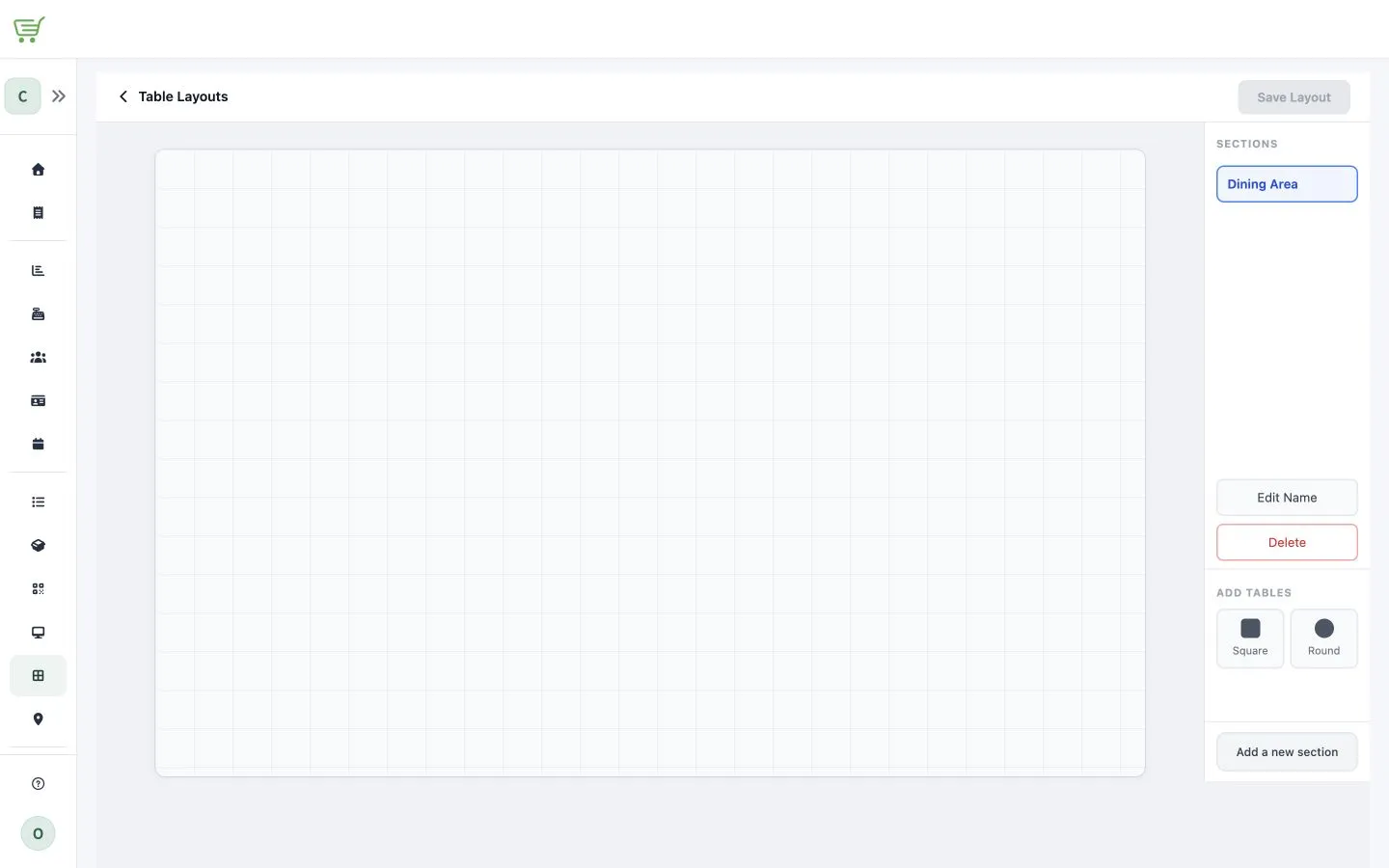
- Enter the table Name and confirm its Shape.
- Select Save.
- Position the table on the layout. Add the remaining tables in the same way.
- Select Save Layout.
The layout becomes available in FreshlyCart POS for dine-in table selection after data synchronizes.