
Connect FreshlyCart POS
Connect FreshlyCart POS by signing in with the merchant account and assigning the POS device to the correct location when prompted.
Before you begin
Section titled “Before you begin”Make sure the account can add a POS device, or be prepared to confirm a replacement if all included POS devices are in use. Keep the device connected to the internet during its initial data sync.
Connect the POS
Section titled “Connect the POS”- Open FreshlyCart POS.
- Select Log In.
- Enter the account Email and Password.
- Select Enter.
- If FreshlyCart asks you to confirm or choose a POS device to replace, review the device shown before continuing. The replaced device is signed out.
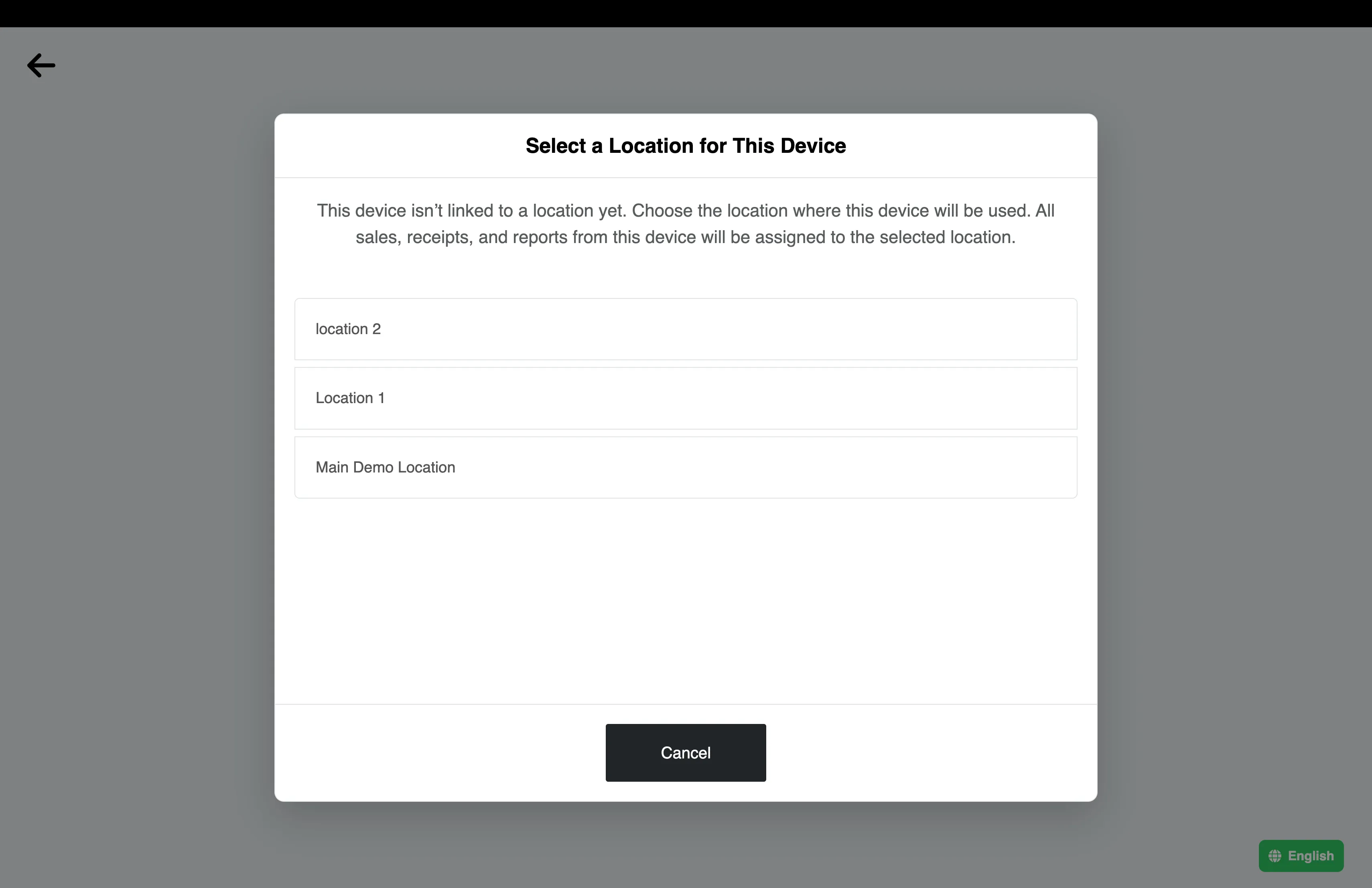
- If FreshlyCart displays Select a Location for This Device, select the location where this POS device will be used.
- Wait while FreshlyCart activates the device and syncs the account data.
- When employee sign-in appears, use the employee PIN to enter the POS.
What happens next
Section titled “What happens next”FreshlyCart assigns the new POS device to the selected location. All sales, receipts, and reports from the device are associated with that location. If the account has only one location, FreshlyCart selects it automatically and does not show the location prompt. A POS device that FreshlyCart already recognizes also skips this step. Products must be available for sale at that location before they appear in the POS.